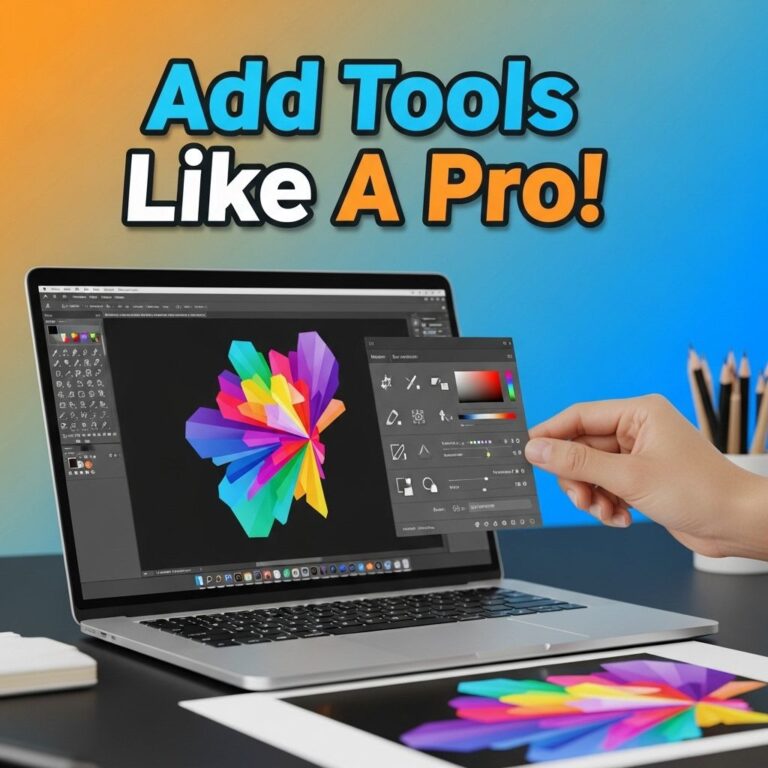
Adobe Photoshop is a powerful tool that has become synonymous with digital art and photo editing. Whether you’re a beginner stepping into the world of graphic design or an experienced artist looking to enhance your skills, mastering Photoshop can significantly elevate your creative projects. In this article, we’ll explore ten essential Photoshop tutorial tips that will help you navigate this complex program and unleash your full artistic potential.
1. Understand the Interface
The first step to becoming proficient in Photoshop is to familiarize yourself with its interface. The layout may seem overwhelming at first, but here are the key components:
- Toolbar: Located on the left side, it contains all the essential tools for editing and creating.
- Options Bar: Just below the menu bar, it offers specific options for the tool currently selected.
- Panels: On the right side, panels like Layers, Adjustments, and Colors provide additional options and settings.
- Canvas: The central area where your artwork is displayed and edited.
2. Master the Use of Layers
Layers are the backbone of Photoshop, allowing you to separate different elements of your design. Here’s how you can effectively use layers:
- Create New Layers: Use the Layers panel to create a new layer for every significant element.
- Layer Groups: Group related layers to keep your workspace organized.
- Adjustment Layers: Use these to apply changes without affecting the original image.
Tip: Give your layers descriptive names to easily identify them later.
3. Utilize Keyboard Shortcuts
Photoshop is packed with keyboard shortcuts that can speed up your workflow. Here are some essential shortcuts:
| Action | Shortcut |
|---|---|
| Undo | Ctrl + Z (Cmd + Z on Mac) |
| Zoom In | Ctrl + + (Cmd + + on Mac) |
| Brush Tool | B |
| Crop Tool | C |
| Save | Ctrl + S (Cmd + S on Mac) |
4. Explore Blending Modes
Blending modes can dramatically change how layers interact with each other. Here’s a quick overview:
- Normal: The default mode, which simply displays the top layer.
- Multiply: Darkens the image by multiplying the base color with the blend color.
- Screen: Lightens the image by inverting, multiplying, and inverting again.
- Overlay: Combines Multiply and Screen, enhancing contrast.
5. Take Advantage of Smart Objects
Smart Objects are powerful because they allow for non-destructive editing. Here’s how to use them:
- Convert to Smart Object: Right-click a layer and select ‘Convert to Smart Object.’
- Edit Non-Destructively: Scale, rotate, and transform without losing image quality.
- Apply Filters: Use filters in a non-destructive way by applying them to the Smart Object.
6. Color Correction Techniques
Color correction is vital for achieving the desired look in your images. Here are some techniques:
- Curves: Adjust the tonal range and color balance.
- Levels: Control the brightness and contrast.
- Hue/Saturation: Adjust the intensity of colors within your image.
7. Utilize the Pen Tool
The Pen Tool is incredibly versatile for creating paths and selections. Here are some tips:
- Practice Creating Paths: Start by tracing simple shapes.
- Convert Anchor Points: Use the Convert Point tool to switch between straight and curved lines.
- Save Paths: You can save paths for later use in the Paths panel.
8. Filters and Effects
Photoshop offers a plethora of filters to enhance your images. Here are some popular ones:
- Gaussian Blur: Softens the image for a dreamy effect.
- Sharpen: Enhances the details in your photo.
- Liquify: Allows for distortion and manipulation of the image.
9. Practice with Tutorials
The best way to learn Photoshop is through practice. Consider the following resources:
- Online Platforms: Websites like Udemy and Coursera offer comprehensive courses.
- YouTube Tutorials: Channels dedicated to Photoshop can provide step-by-step guides.
- Adobe’s Official Tutorials: Adobe’s website has a wealth of resources for all skill levels.
10. Experiment and Create
Finally, the most important tip is to just experiment. Here’s how you can foster creativity:
- Try New Techniques: Don’t hesitate to explore unfamiliar tools.
- Join Communities: Engage with other creative minds on platforms like Instagram or Behance.
- Set Challenges: Participate in design challenges to push your limits.
Conclusion
Photoshop is a tool that can transform your creative vision into reality. By mastering these ten essential tips, you’ll be on your way to becoming a proficient user of this powerful software. Remember, the key to success in Photoshop is consistent practice and a willingness to learn. So dive in, explore the possibilities, and create stunning visuals that reflect your unique style!
FAQ
What are the essential tools for beginners in Photoshop?
Beginners should familiarize themselves with the Move Tool, Brush Tool, Lasso Tool, and the Type Tool to create and edit images effectively.
How can I improve my workflow in Photoshop?
Using keyboard shortcuts, creating actions for repetitive tasks, and organizing layers can significantly enhance your workflow in Photoshop.
What is the importance of using layers in Photoshop?
Layers allow you to separate different elements of your design, making it easier to edit, organize, and manipulate each component independently.
How can I make precise selections in Photoshop?
Utilize tools like the Pen Tool for vector selections and the Quick Selection Tool for more intuitive selections to achieve accuracy.
What are some tips for color correction in Photoshop?
Use adjustment layers such as Curves, Levels, and Color Balance to make non-destructive color corrections and enhance your images.
How can I save and export my work in Photoshop?
To save your work, use the PSD format for editing later, and for exporting, choose formats like JPEG or PNG depending on your needs for web or print.