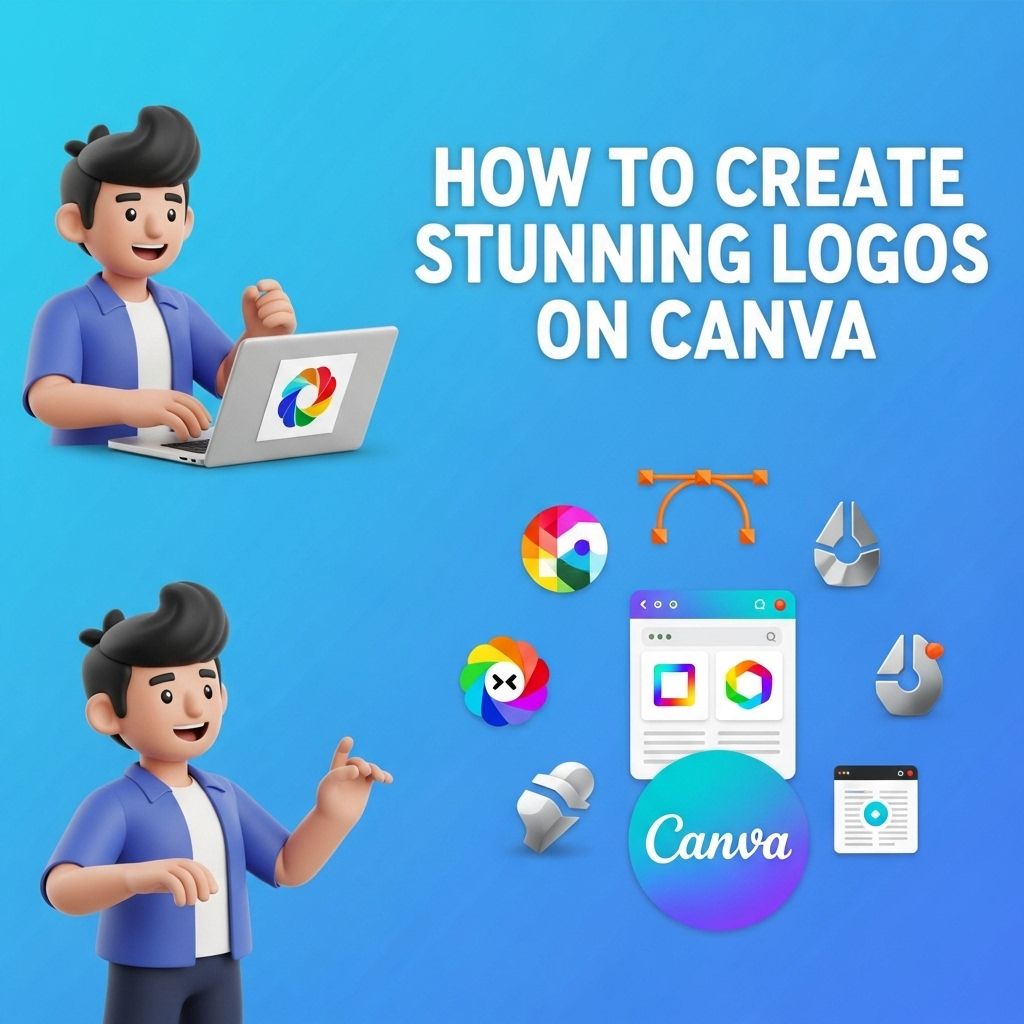

In the digital age, a logo serves as the face of your brand, symbolizing your identity and values. Creating a stunning logo might seem daunting, especially for those without design experience. However, with platforms like Canva, the process can be straightforward and enjoyable. This article will guide you through the essential steps to craft a logo that stands out while leveraging the powerful tools offered by Canva.
Understanding the Importance of a Logo
A logo is more than just an image; it’s a critical component of your branding strategy. Here are some reasons why a well-designed logo is essential:
- Identity: It helps establish your brand’s identity and differentiates you from competitors.
- Professionalism: A quality logo conveys professionalism and builds trust among consumers.
- Memorability: A unique logo makes your brand more memorable.
- Versatility: Logos can be used across various platforms, from business cards to websites.
Getting Started with Canva
Creating Your Account
Before diving into logo creation, you’ll need a Canva account. Follow these steps:
- Visit canva.com.
- Click on Sign Up or Log In if you already have an account.
- Choose to create an account using your email, Google account, or Facebook.
Exploring the Canva Interface
Once logged in, familiarize yourself with the Canva interface:
- Templates: Access a library of templates for inspiration.
- Elements: Find shapes, lines, icons, and more to add to your design.
- Text: Use a variety of fonts and text styles.
- Backgrounds: Choose from solid colors, gradients, or images.
Steps to Create a Stunning Logo
1. Research and Inspiration
Before you start designing, gather inspiration:
- Look at competitor logos.
- Explore design websites like Dribbble and Behance.
- Use Pinterest to compile images and ideas that resonate with your brand.
2. Define Your Brand Identity
Understanding your brand is crucial. Consider these aspects:
- Mission: What does your brand stand for?
- Target Audience: Who are you designing for?
- Brand Personality: Is your brand formal, playful, modern, or classic?
3. Selecting a Template
Canva offers numerous pre-designed logo templates. Here’s how to select one:
- From the home page, type “Logo” in the search bar.
- Browse through the options and choose one that resonates with your brand’s identity.
4. Customizing Your Logo
Once you’ve selected a template, customize it to fit your brand:
- Change Colors: Use your brand colors or complimentary palettes.
- Edit Text: Update the text with your brand name and tagline.
- Add Elements: Incorporate icons or graphics that align with your brand.
5. Choosing Fonts Wisely
The font you choose can significantly influence your logo’s impact:
- Readability: Ensure the text is easily readable.
- Style: Choose fonts that reflect your brand’s personality.
- Pairing: Use complementary fonts for a polished look.
6. Testing and Feedback
Once your logo is ready, gather feedback:
- Show the design to friends, family, or colleagues.
- Ask for their thoughts on clarity, appeal, and relevance to your brand.
- Use their feedback to make necessary adjustments.
Finalizing and Downloading Your Logo
Choosing the Right File Type
Canva allows you to download your logo in various formats. Here are the best options:
| File Type | Use Case |
|---|---|
| PNG | Best for web use and maintains high quality with a transparent background. |
| JPG | Ideal for use in documents or presentations where transparency is not needed. |
| SVG | Perfect for resizing without losing quality, great for printed materials. |
Downloading Your Logo
To download your logo, follow these steps:
- Click on the Share button in the top right corner.
- Select Download.
- Choose your desired file type and click Download.
Additional Tips for a Professional Logo
- Keep it Simple: A complex design may lose its appeal when scaled down.
- Be Unique: Ensure your logo doesn’t resemble other brands to avoid confusion.
- Consider Usage: Think about where the logo will be used and design accordingly.
Conclusion
Creating a stunning logo on Canva is not only accessible but also an opportunity to express your brand’s identity creatively. By following these steps and utilizing the tools Canva provides, you can design a logo that resonates with your audience and stands the test of time. Remember, your logo is your brand’s first impression—make it count!
FAQ
What is Canva and how can it help me create logos?
Canva is a user-friendly graphic design platform that provides a wide range of templates, tools, and resources to help you create stunning logos easily.
Do I need design experience to create logos on Canva?
No, Canva is designed for users of all skill levels, so even if you have no design experience, you can create professional-looking logos.
Can I customize logo templates in Canva?
Yes, Canva allows you to fully customize logo templates by changing colors, fonts, and adding your own elements to make your logo unique.
Is it possible to download my logo in different formats on Canva?
Yes, Canva allows you to download your logo in various formats such as PNG, JPG, and PDF, depending on your needs.
Can I collaborate with others when designing my logo on Canva?
Absolutely! Canva offers collaboration features, allowing you to share your design with others for feedback and suggestions.
Are there any costs associated with creating logos on Canva?
Canva offers both free and paid subscriptions. While many features are available for free, some premium elements may require a subscription or one-time purchase.