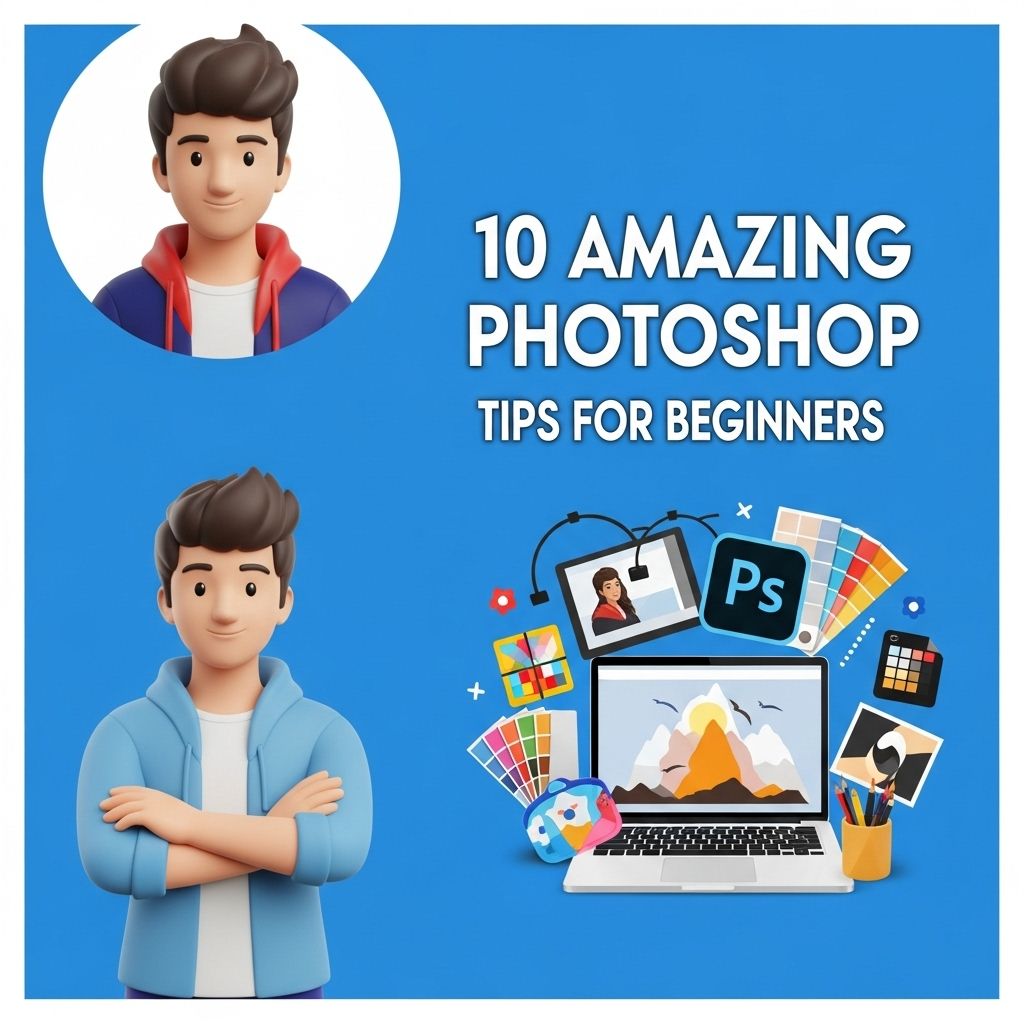

Photoshop is an incredibly powerful tool for anyone looking to enhance images, create stunning graphics, or explore their creative side. For beginners, however, diving into Photoshop can feel overwhelming due to its extensive features and capabilities. This article will delve into ten amazing tips that will not only help you get started but also elevate your skills to the next level. Whether you’re looking to edit photos or create digital art, these tips will guide you through the essentials of this software.
Understanding the Interface
Before jumping into advanced techniques, it’s crucial to familiarize yourself with the Photoshop interface. Here are some key components:
- Menu Bar: Located at the top, this is where you can access all the primary features.
- Toolbox: Usually found on the left, this area contains the various tools for editing and creating.
- Options Bar: Located beneath the menu bar, it changes based on the selected tool to provide additional options.
- Panels: On the right, panels like Layers, Adjustments, and History allow for detailed modifications and controls.
1. Mastering Layers
Layers are the backbone of Photoshop, allowing you to work on different elements of your image without affecting the whole. Understanding how to use layers effectively is key to any editing process. Here are some tips:
Creating and Managing Layers
- Create a New Layer: Press Ctrl + Shift + N (Windows) or Command + Shift + N (Mac).
- Rename Layers: Double-click on the layer name in the Layers panel to rename it.
- Group Layers: Select multiple layers and press Ctrl + G (Windows) or Command + G (Mac) to group them.
Using Layer Masks
Layer masks allow you to hide parts of your layer without deleting them. This is particularly useful for non-destructive editing. To add a layer mask:
- Select the layer you want to mask.
- Click on the layer mask icon at the bottom of the Layers panel.
- Use a brush to paint on the mask—white reveals and black conceals.
2. Keyboard Shortcuts
Using keyboard shortcuts can significantly speed up your workflow. Here are some essential shortcuts to remember:
| Action | Shortcut |
|---|---|
| Undo | Ctrl + Z (Windows) / Command + Z (Mac) |
| Zoom In | Ctrl + + (Windows) / Command + + (Mac) |
| Zoom Out | Ctrl + – (Windows) / Command + – (Mac) |
| Brush Tool | B |
| Move Tool | V |
3. Utilizing Adjustment Layers
Adjustment layers are a fantastic way to enhance your images without altering the original. This is particularly useful for making color corrections or adjustments in exposure. Here’s how to use them:
- Go to the Layers panel and click on the ‘Create new fill or adjustment layer’ icon.
- Select the desired adjustment (e.g., Brightness/Contrast, Curves, Hue/Saturation).
- Make your adjustments in the properties panel that appears.
4. Cropping and Resizing
Cropping and resizing images can affect composition dramatically. Here are tips for effective cropping:
Using the Crop Tool
- Select the Crop Tool from the toolbox.
- Click and drag to create a cropping box.
- Use the handles to adjust the size and aspect ratio as needed.
Resizing Images
To resize an image without losing quality:
- Go to Image > Image Size.
- Ensure that Constrain Proportions is checked to maintain the image’s aspect ratio.
- Enter your desired dimensions and click OK.
5. Experimenting with Brushes
Photoshop offers an extensive range of brushes for different effects. You can also create your own!
Using Built-in Brushes
- Select the Brush Tool from the toolbox.
- In the Options Bar, choose a brush from the drop-down menu.
- Adjust the size and hardness as needed.
Creating Custom Brushes
To make a custom brush:
- Create a new document with your desired brush shape.
- Select the area with the Brush Tool.
- Go to Edit > Define Brush Preset and name your brush.
6. Learning to Use Filters
Filters can add unique effects and styles to your images. Here are a few popular ones:
- Gaussian Blur: Softens images and creates a dreamy effect.
- Sharpen: Enhances detail and makes images crisper.
- Noise: Adds a grainy texture for a vintage look.
Applying Filters
To apply a filter:
- Select the layer you want to filter.
- Go to Filter in the menu bar and select your desired filter.
7. Exploring Text Tools
Photoshop offers robust text tools for creating beautiful typography. Here’s how to get started:
Adding Text
- Select the Type Tool from the toolbox.
- Click on your canvas and type your text.
Formatting Text
You can adjust text properties such as font, size, and color in the Options Bar or the Character panel.
8. Using Smart Objects
Smart Objects allow you to apply transformations and filters without permanently altering the original image. To convert a layer to a Smart Object:
- Right-click on the layer in the Layers panel.
- Select Convert to Smart Object.
9. Saving Your Work
Saving your work efficiently is vital. Here’s how to do it:
- Use File > Save As to save your project in PSD format to retain layers.
- For exporting images, use File > Export > Export As to choose the desired format.
10. Continuous Learning and Resources
Photoshop is a vast tool, and continuous learning is essential. Here are some resources to help you:
- Adobe Tutorials: Free resources directly from Adobe.
- Online Courses: Platforms like Udemy, Skillshare, or Coursera offer structured courses.
- YouTube: Channels dedicated to Photoshop tutorials can be incredibly helpful.
In conclusion, these Photoshop tips for beginners will set you on the right path to mastering this powerful software. Remember, practice makes perfect, so dive in and start experimenting! The more you explore, the more skilled you’ll become.
FAQ
What are some essential Photoshop tips for beginners?
Beginners should start with mastering the basics, such as understanding layers, using selection tools, and familiarizing themselves with the toolbar.
How can I improve my image editing skills in Photoshop?
Practice regularly, follow online tutorials, and experiment with different tools and techniques to enhance your editing skills.
What is the importance of layers in Photoshop?
Layers allow you to separate different elements of your design, making it easier to edit and manipulate individual components without affecting the entire image.
How do I use selection tools effectively in Photoshop?
Selection tools like the Rectangular Marquee, Lasso, and Quick Selection tools help isolate parts of an image for editing; mastering these will improve your workflow.
What is the best way to learn Photoshop as a beginner?
Start with online courses, tutorials, and practice projects, and gradually move on to more advanced techniques as you become comfortable.
Are there keyboard shortcuts that can help speed up my Photoshop workflow?
Yes, learning keyboard shortcuts for common actions can significantly speed up your editing process and improve your efficiency.